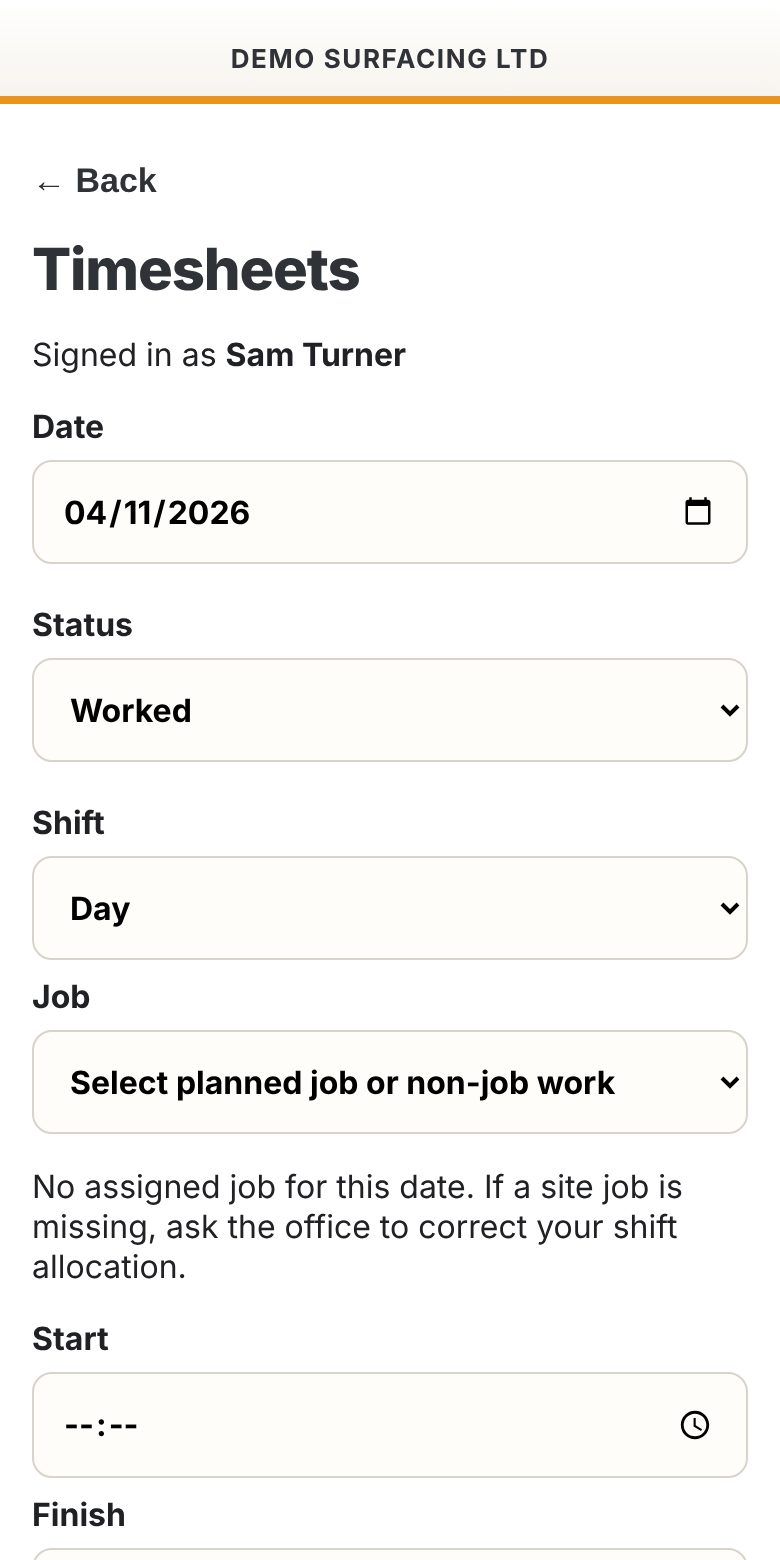
The crew's phone
One home screen for the whole shift.
Each person signs in with their work email and sees only the parts of P3S your company has switched on for them.
- Sign in onceYour office sends each person an invite link. After that they sign in with their work email: P3S emails them a sign-in link or code, or they can use a password. They add P3S to their home screen, with nothing to download from an app store.
- Everything for the shift in one placeMy work, the safety briefing, toolbox talk, fuel, vehicle check, near misses and job notes, depending on what you've switched on.
- Their shift at the topSite, start time, any weather warning and whether they've signed the briefing, with one tap to sign it.
- Your company name at the topThe app shows your company name, so the crew knows it's yours.
Office and managers
See what needs doing, without asking.
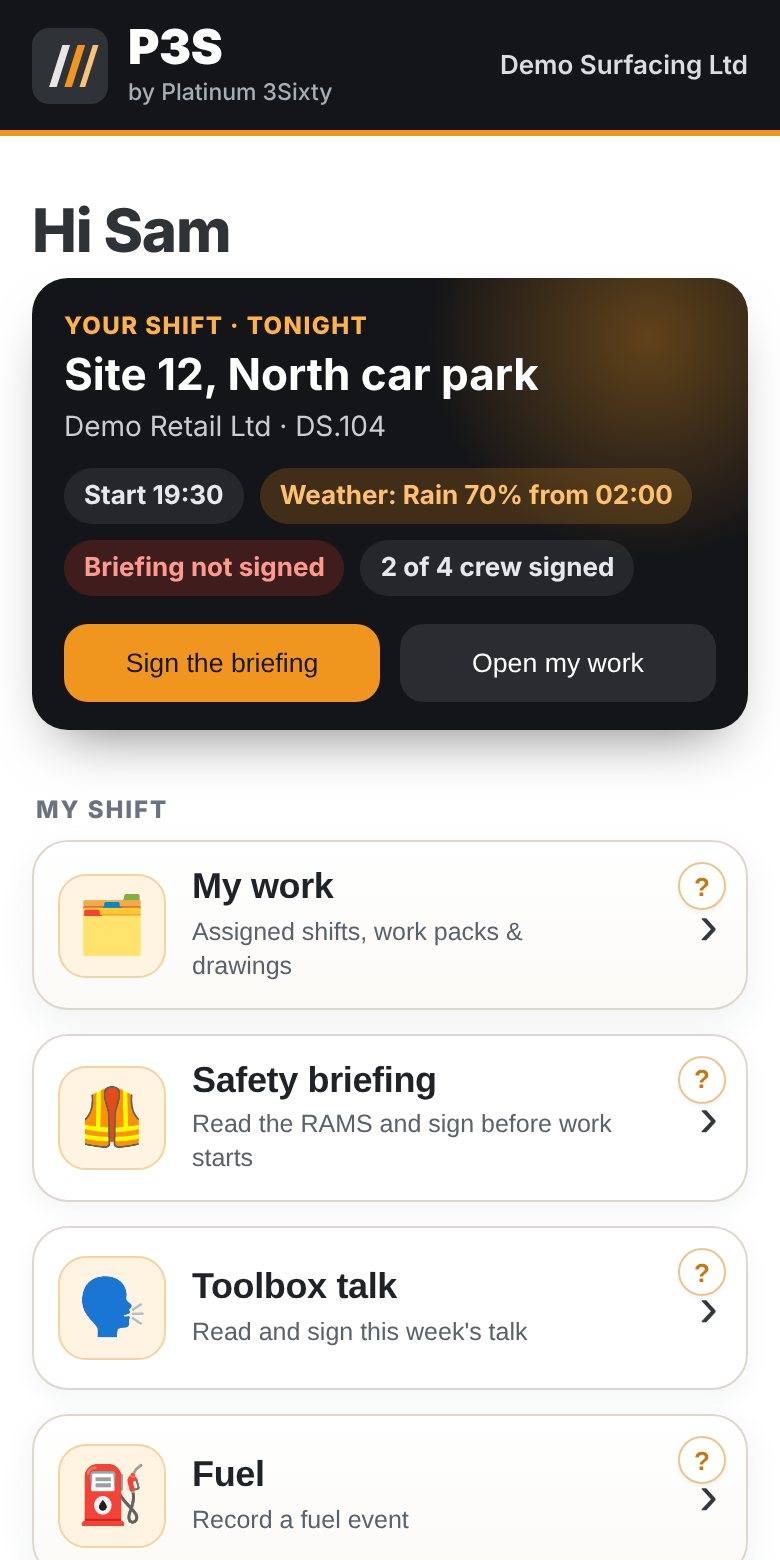
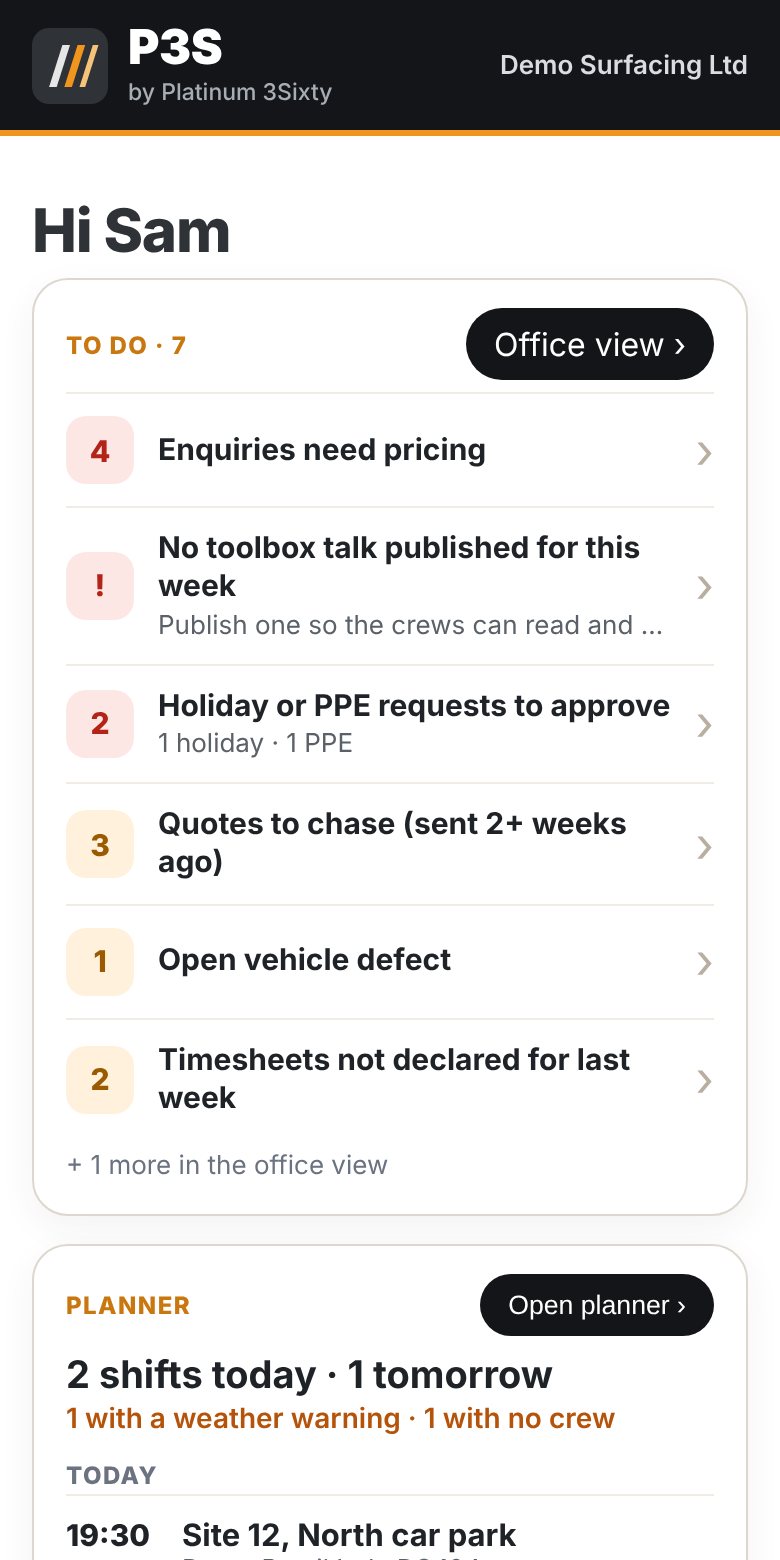
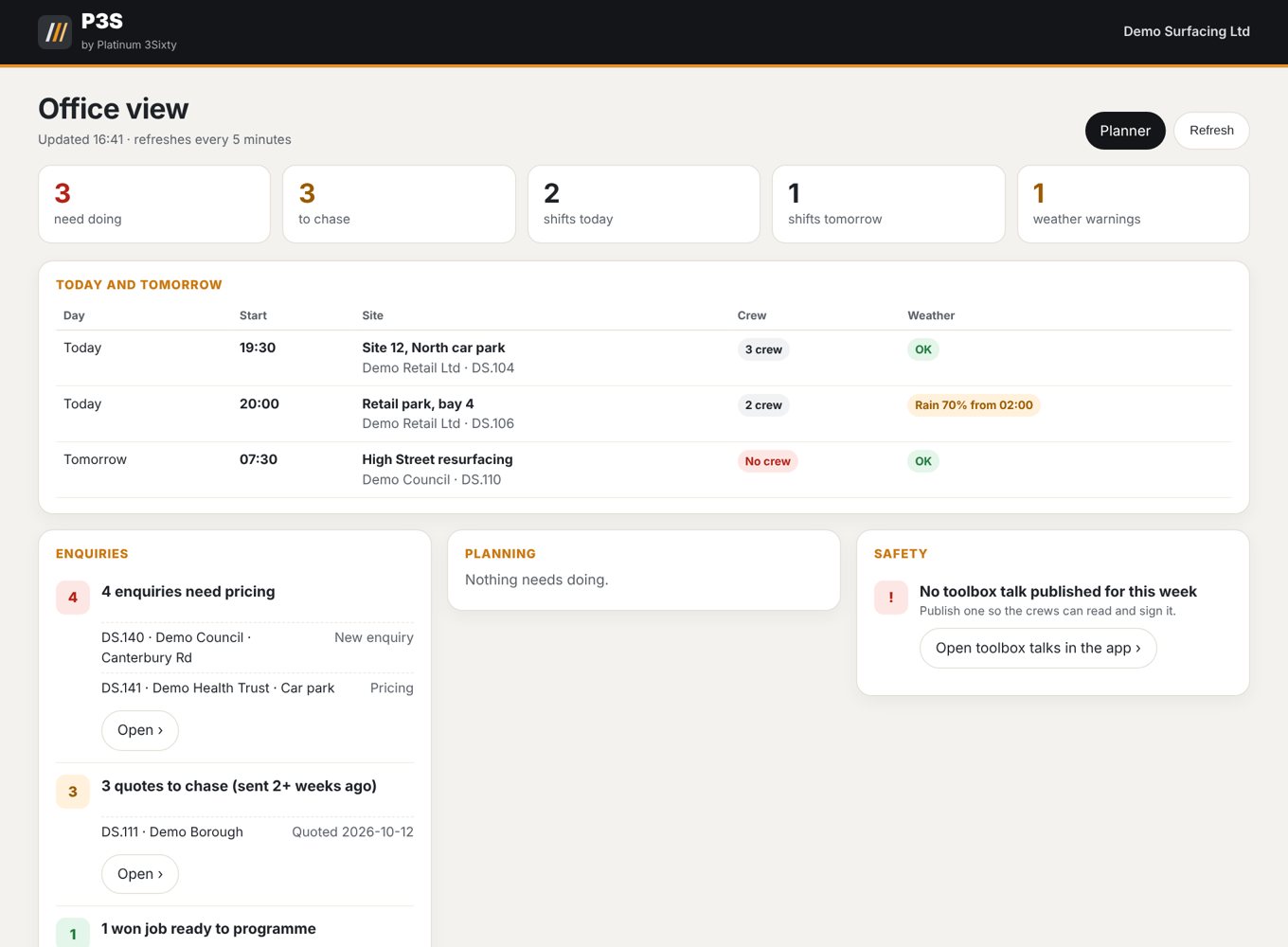
Office logins get a To do list on the phone and a full Office view on the desktop, built from what's happening in the app.
- Enquiries and quotesEnquiries waiting to be priced, quotes to chase after two weeks, and won jobs ready to programme.
- SafetyNo toolbox talk published this week, or who still hasn't signed it.
- Planning and paperworkShifts in the next week with no crew, and daily site diaries that haven't come in.
- People and fleetHoliday and PPE requests to approve, open vehicle defects and timesheets not declared.
- Today and tomorrow at a glanceEvery shift with its start time, crew and weather. The desktop view refreshes itself every few minutes.
Planning
Plan it once. Everyone knows.
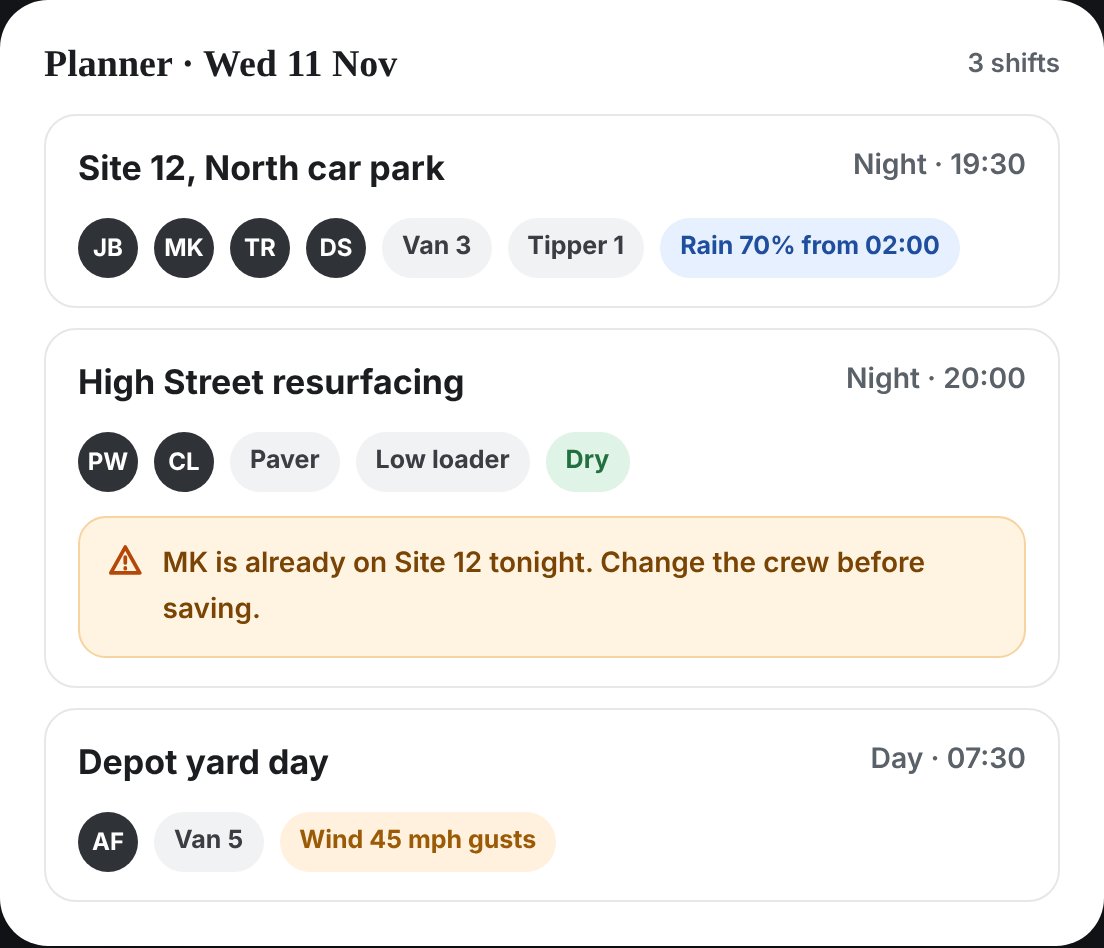
The office plans the shifts. The crew sees their own on their phone.
- Add the shiftSite, date, start time, crew and vehicles, picked from your own staff and fleet lists.
- Weather warningsShifts today and tomorrow are checked against the forecast near the site. If rain, strong wind or cold is due, the crew gets a phone alert and the office gets an email.
- Spot double bookingsIf a person or a vehicle is already on another job that day, P3S warns you before you save.
- The crew sees it in My workWhere, when, who with and the site-specific RAMS, on each person's phone.
RAMS, briefings and toolbox talks
No more missed signatures.
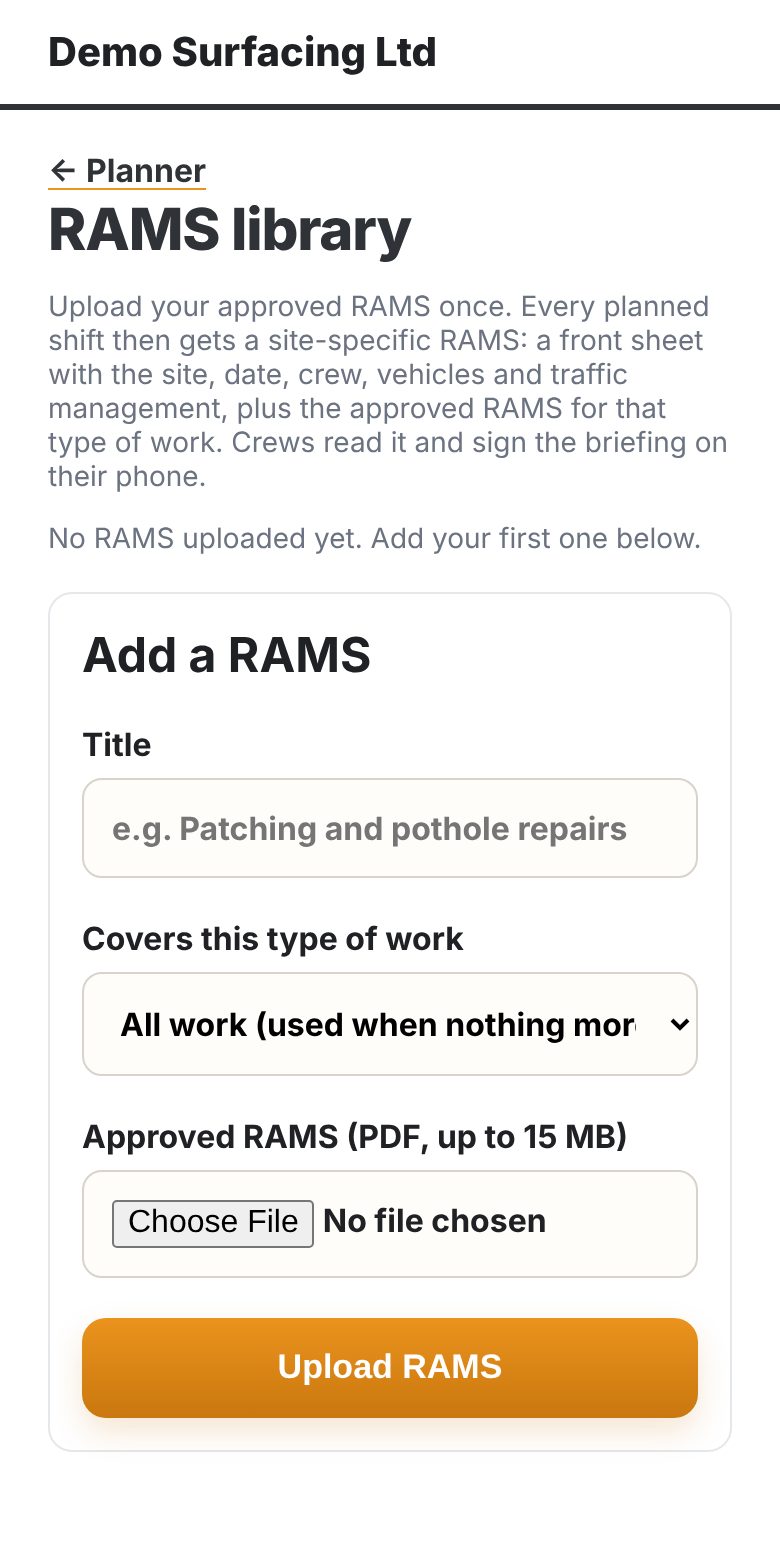
Your approved RAMS go in once. Every shift gets its own site-specific RAMS, signed on each person's phone.
- Upload your approved RAMSOne PDF per type of work, or one for all work, in the RAMS library.
- Every shift gets a site-specific RAMSA front sheet with the site, date, crew, vehicles and traffic management, plus your approved RAMS for that type of work.
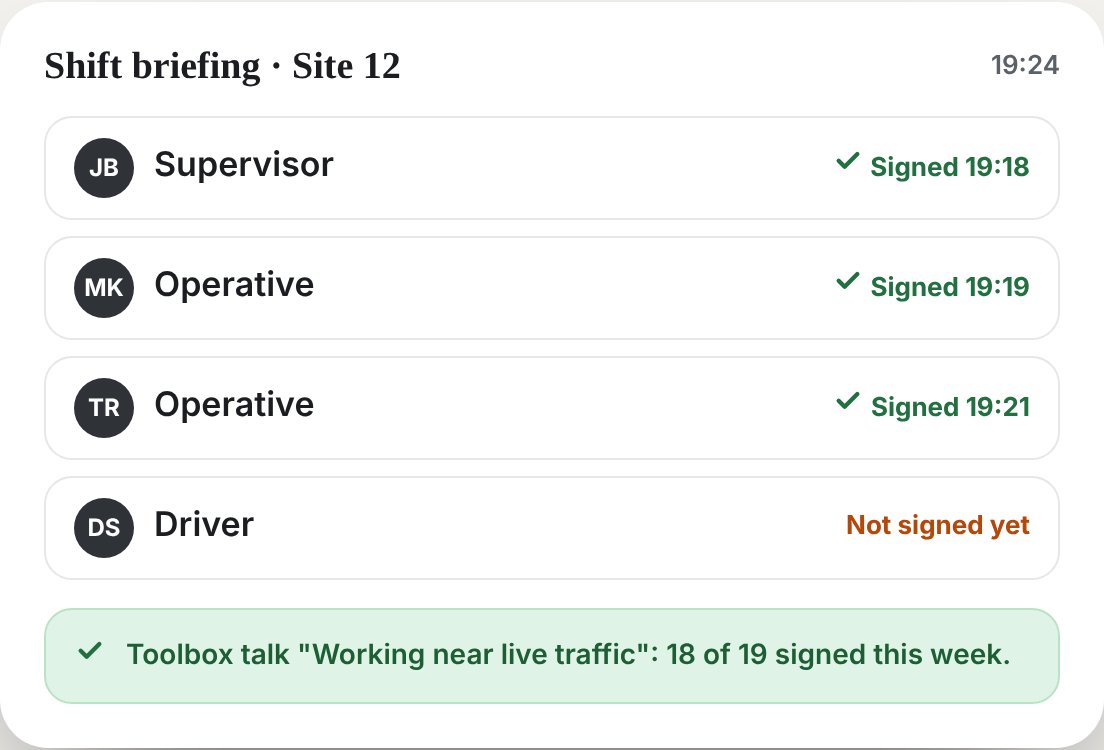
- The crew reads it and signsEach person signs the briefing on their own phone before work starts. The office can see who has signed.
- Toolbox talks and near missesPublish a toolbox talk once and everyone signs it. Near misses, hazards and damage are reported from site.
Vehicle checks and the fitter
Every defect reported, fixed and costed.
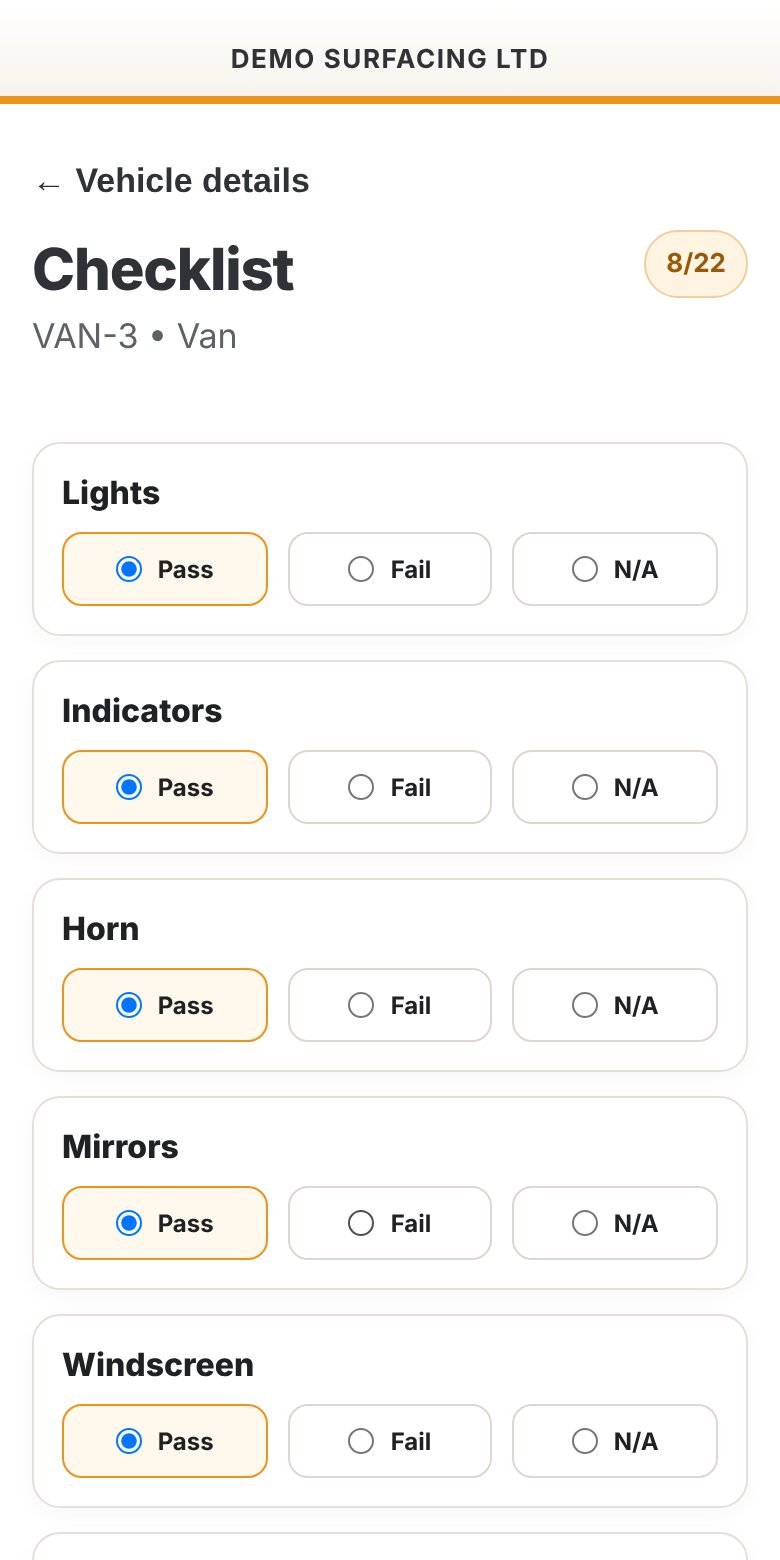
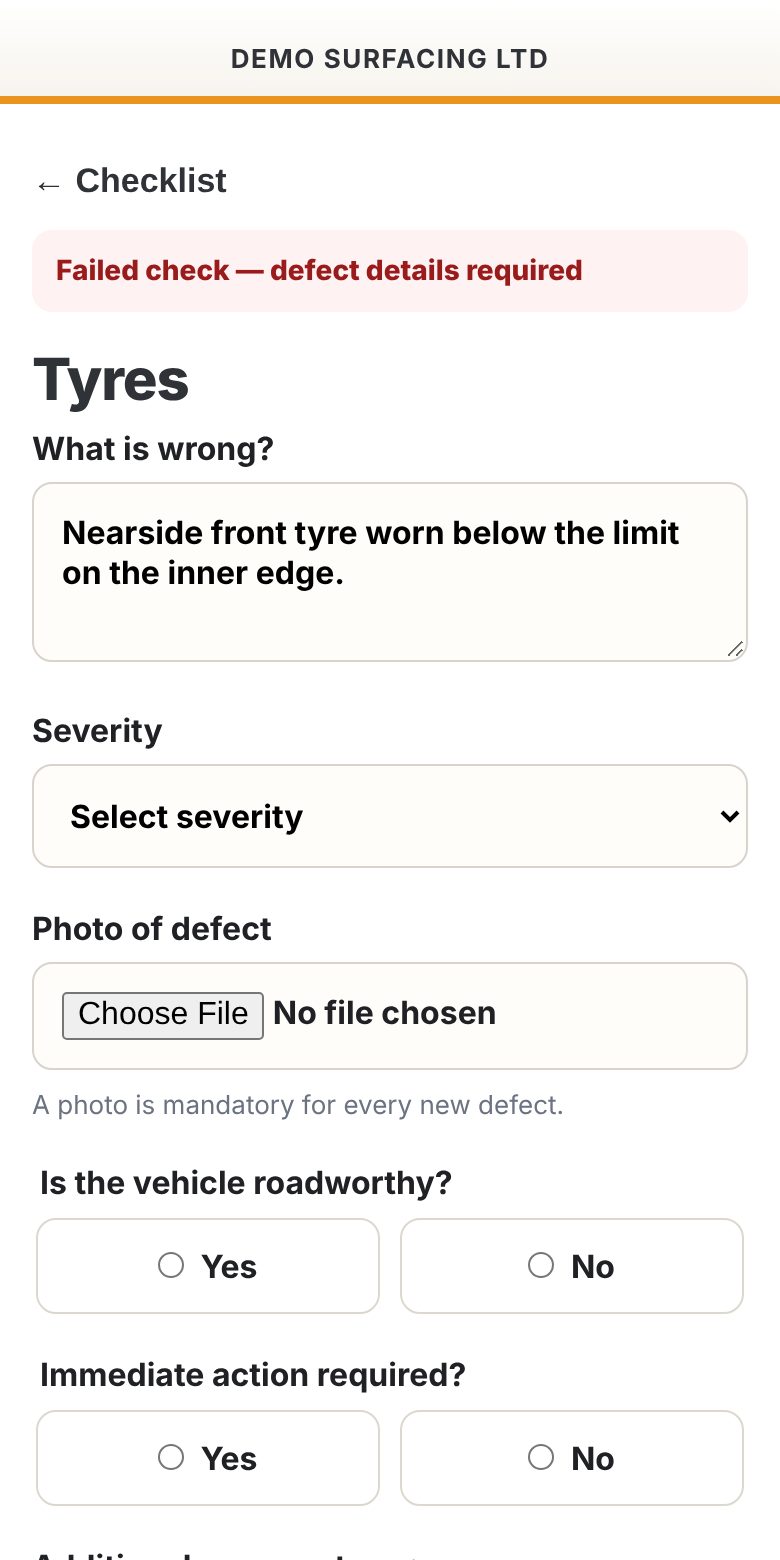
Daily walk-round checks on the phone. A failed item goes straight to the fitter, and the fitter logs the repair against the vehicle.
- Pick the vehicleChoose the van, lorry or trailer, enter the mileage or hours, and start the checklist.
- Pass, fail or N/AEvery item on that vehicle's checklist, from lights and tyres to load security.
- A fail needs the detailsWhat's wrong, how serious it is, a photo (always required) and whether it's roadworthy.
- The fitter is told straight awayA defect email goes to the workshop and office addresses you set, within a few minutes.
- The fitter logs the repairWork done, parts, labour and other costs, and whether the vehicle is back in use. Every repair builds that vehicle's cost history.
People (available on request)
Cards, holidays and PPE, without the paperwork.
Each person has their own records on their phone, and managers approve requests in one place. We set up your cards and PPE list with you.
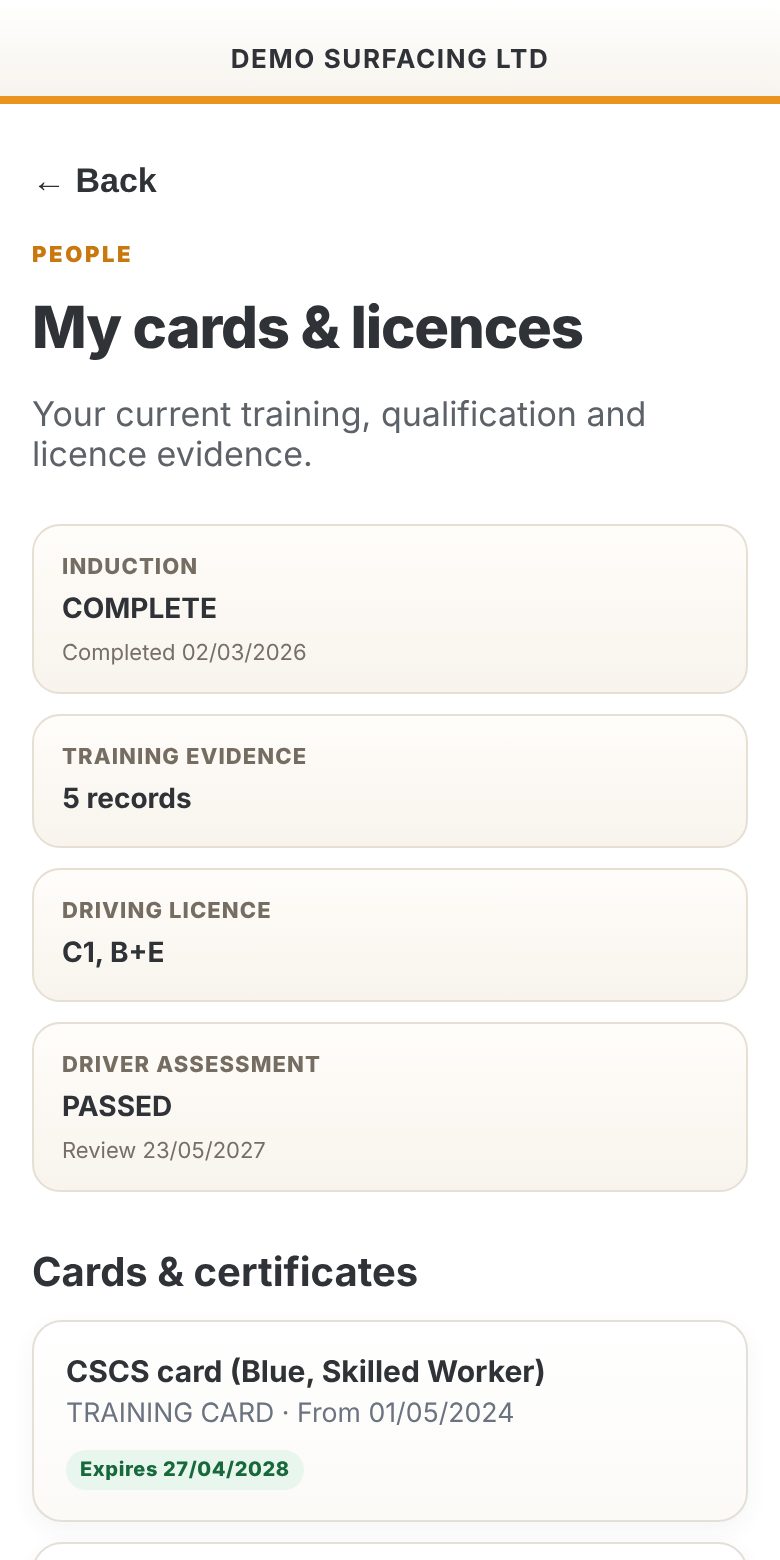
- Cards and licencesEach person's training cards, certificates and licence details, with expiry dates. Anything expired or due within 60 days is highlighted.
- Request a holidayPick the dates, a full or part day and add a note. The request shows as waiting until it's approved.
- Request PPEChoose from your own PPE list with sizes, the quantity and whether it's routine, a replacement or urgent.
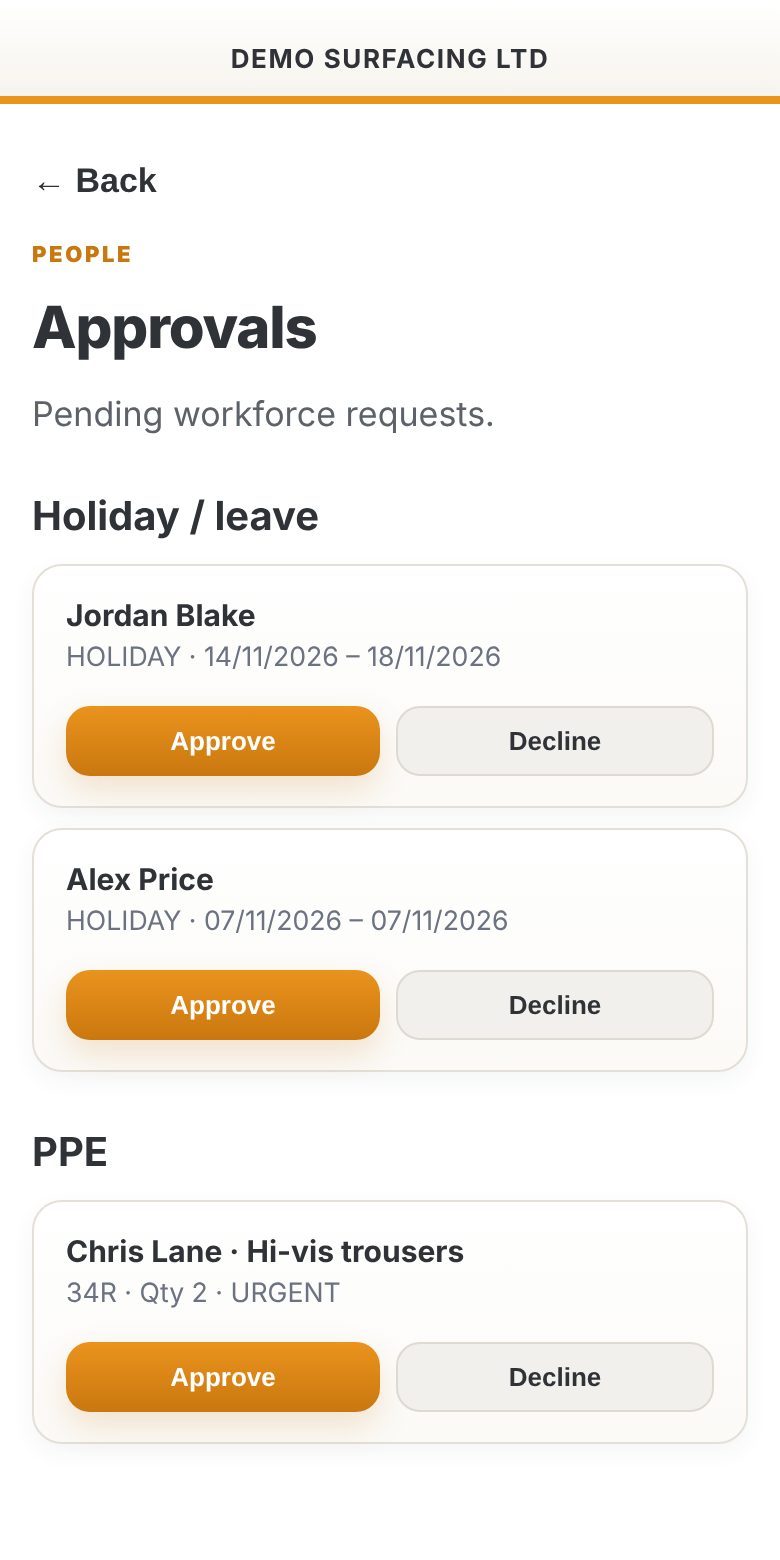
- Managers approveHoliday and PPE requests wait in Approvals with the person's name, ready to approve or decline.
Surveys, issue reports and estimates
From the site walk to a priced quote.
Survey the site in P3S, send the client a branded issue report, and price the work from your own rates.
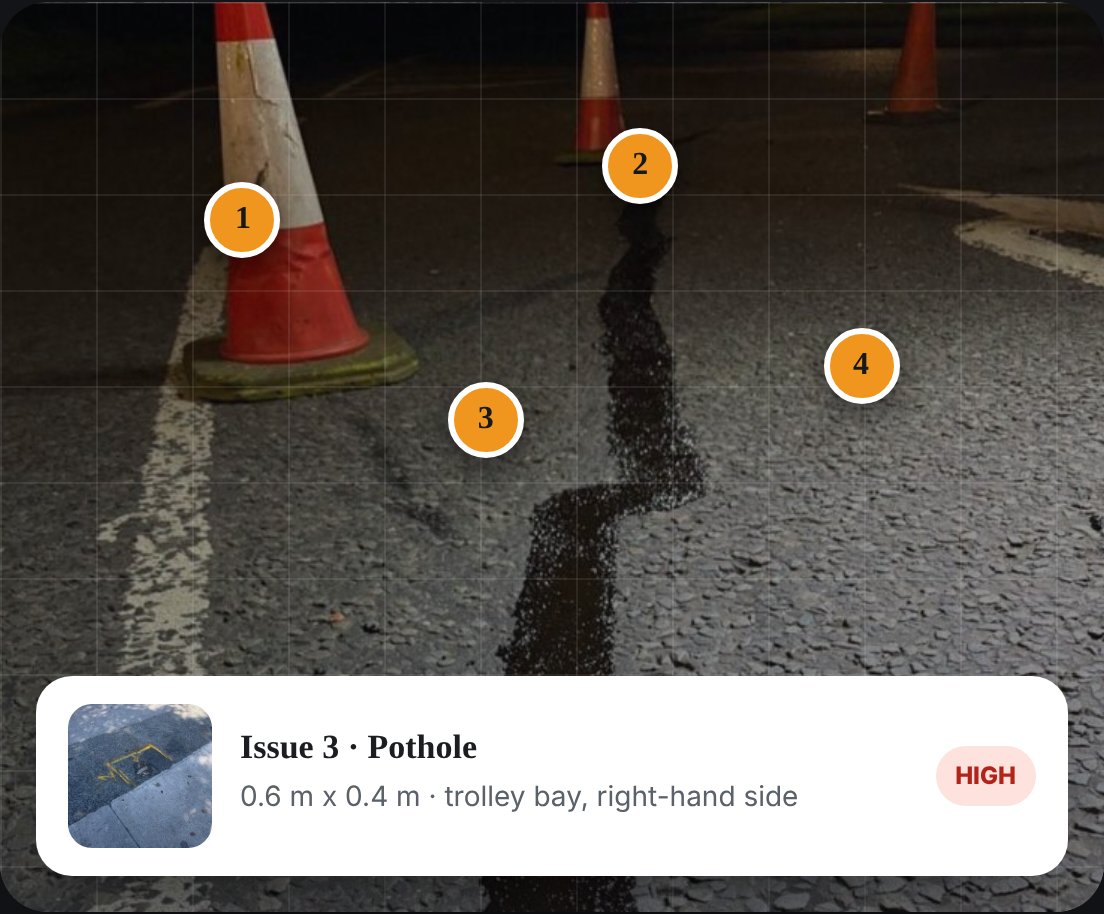
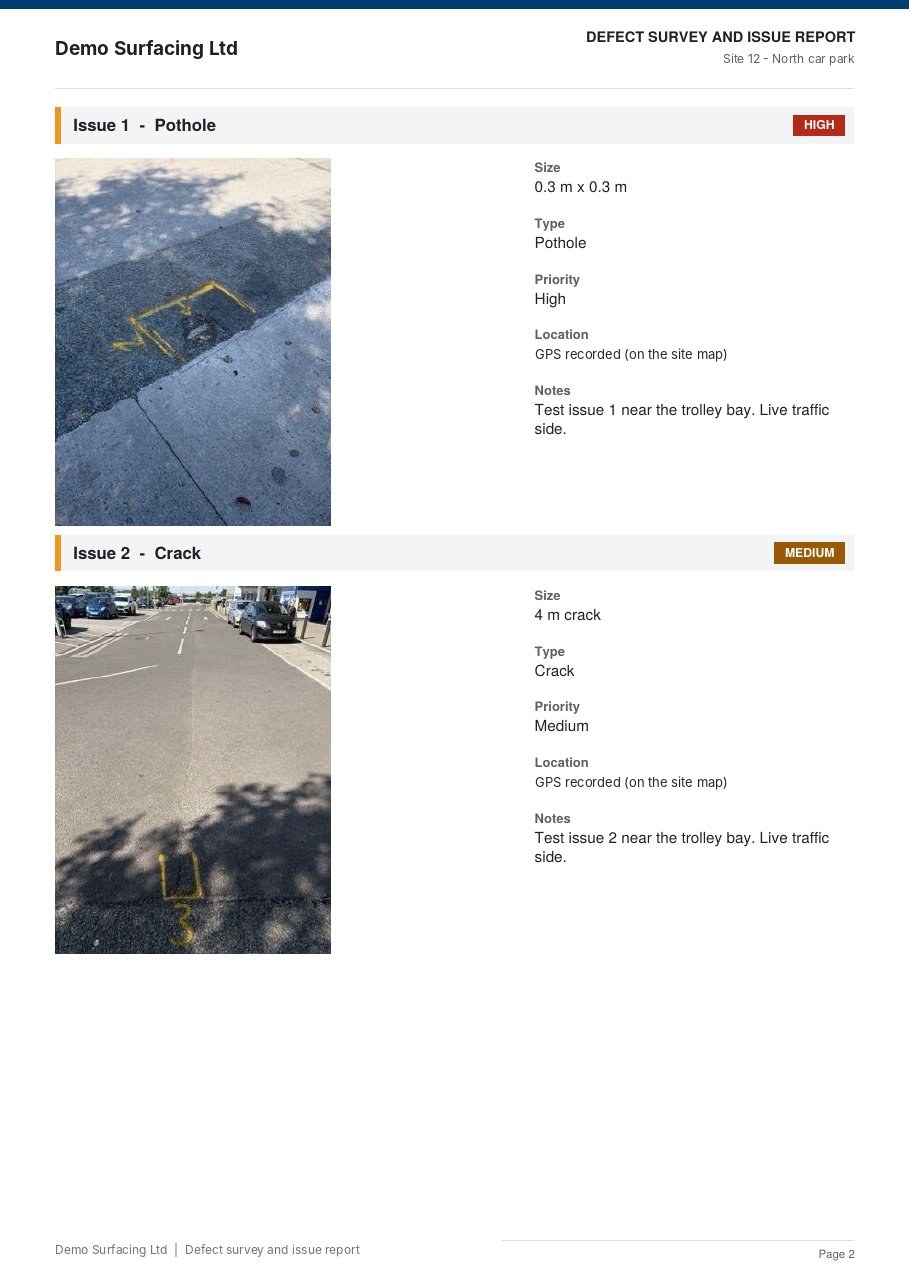
- Pin each defect on the mapTap the spot on the satellite map, or drop a pin where you're standing. Drag it to fine-tune.
- Photo, type, size and priorityPothole, crack, joint, ironwork and more, with length and width and your notes.
- Create the issue reportOne tap makes a PDF with a cover, a site map with numbered pins, and every issue with its photo, type and size.
- Price it from your ratesBuild the estimate from your own schedule of rates and email the quote to the client.
Daily site diary
Every shift recorded before the crew leaves site.
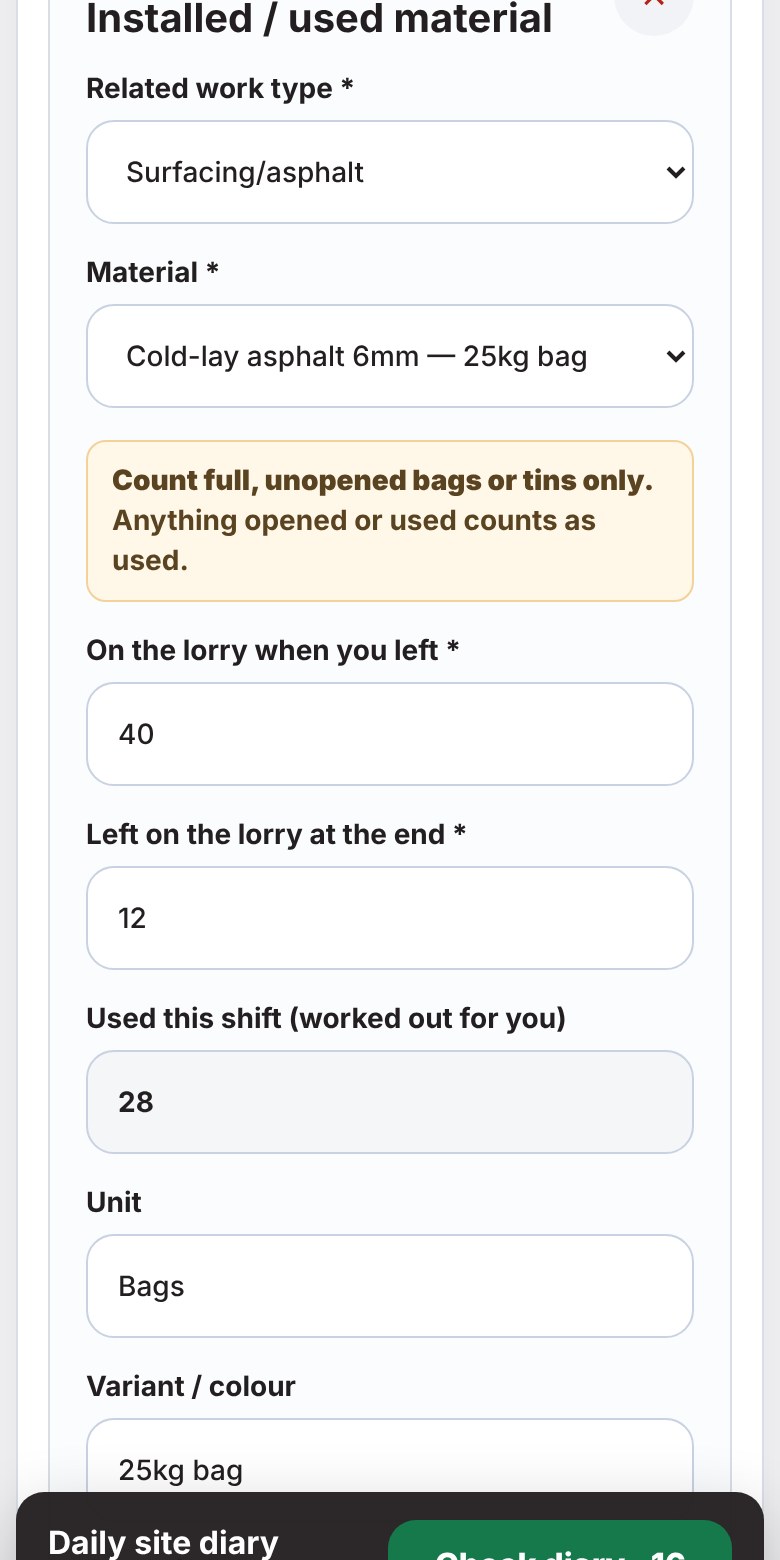
The daily site diary opens with the job details already filled in. It saves on the phone as the crew goes.
- People, times and vehiclesWho was on site, start and finish, weather, vehicles and plant.
- Safety and the work doneBriefings, permits, and each activity with its area, length or count.
- Bags and tins counted out and backThe crew enters how many were on the lorry when they left and how many are left at the end. P3S works out what was used, so material already in the boilers is never counted twice.
- Photos and close-outBefore, during and after photos, delays, incidents and the client's sign-off.
Site reports
The completion report writes itself.
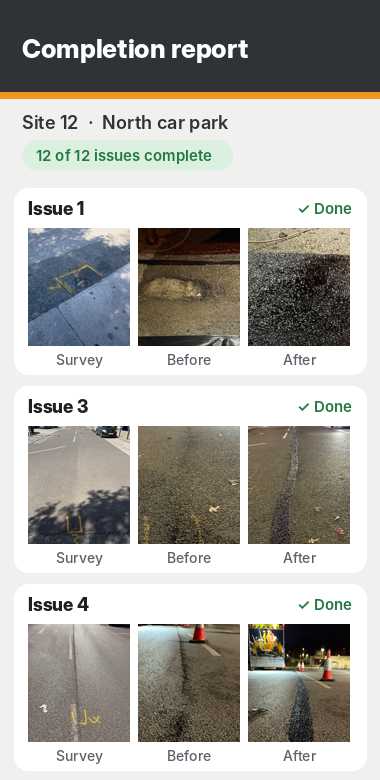
The same issues from the survey, or the client's own list, go to the crew's phones.
- Load the issuesFrom your P3S survey, or the client's list from Excel, CSV or a PDF.
- The crew photographs each repairA before and an after for every issue, next to the survey photo.
- Tap CompleteThe branded completion report is built, with survey, before and after side by side, and the office gets a phone alert.
Asphalt surfacing
Know what's on the road right now.
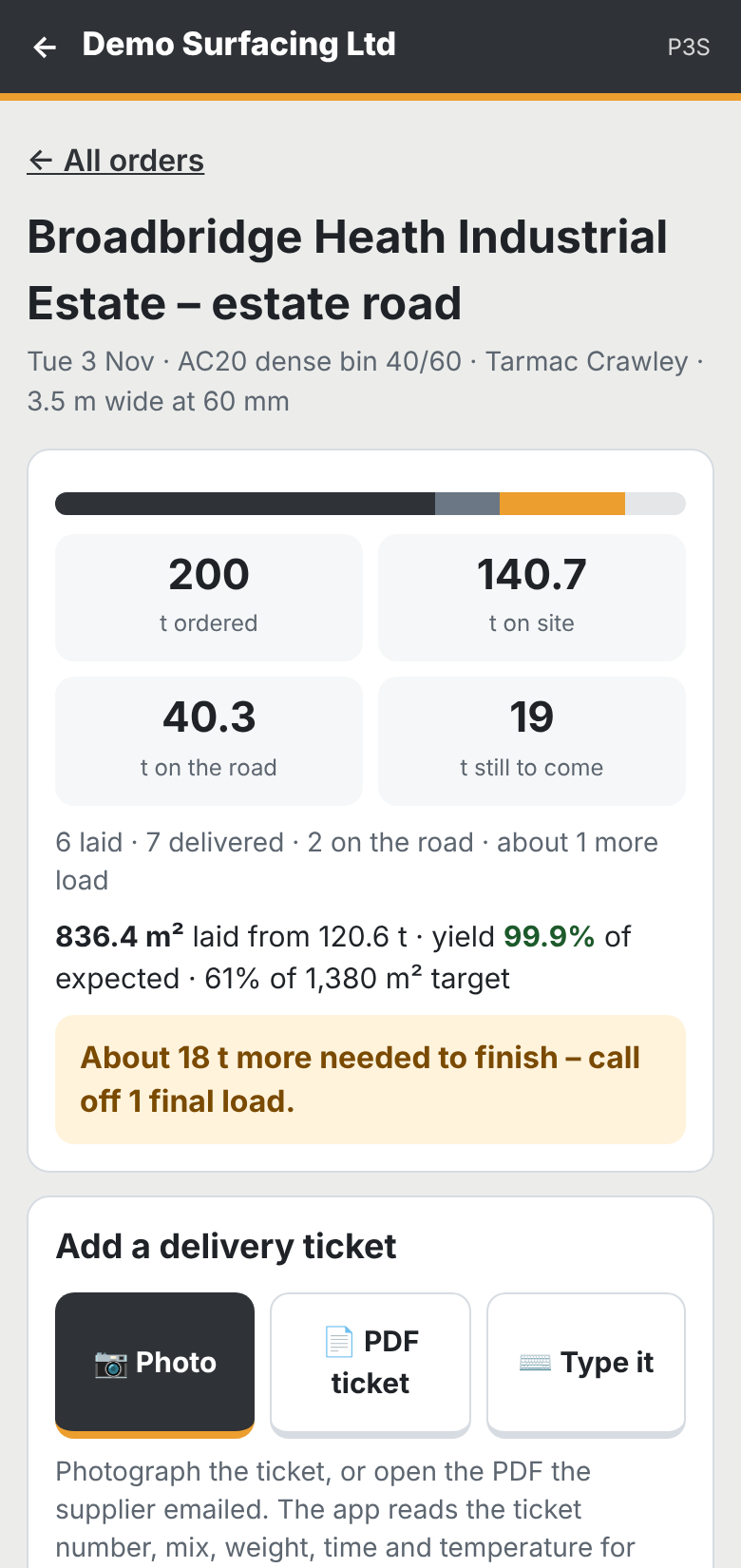
Ask us to switch it on if you lay asphalt. Every delivery ticket is logged against the job.
- Photograph the ticketOr paste the supplier's email.
- See every loadWhat's been delivered, what's on the road and what's still to come.
- Area laid and yieldThe area laid and the yield for every load, against what was ordered.
Asphalt surfacing: planings, plant and dips
Every tipper load and dip, on the job.
Everything going off site, everything on site and the dips for your measure, against the same surfacing job.
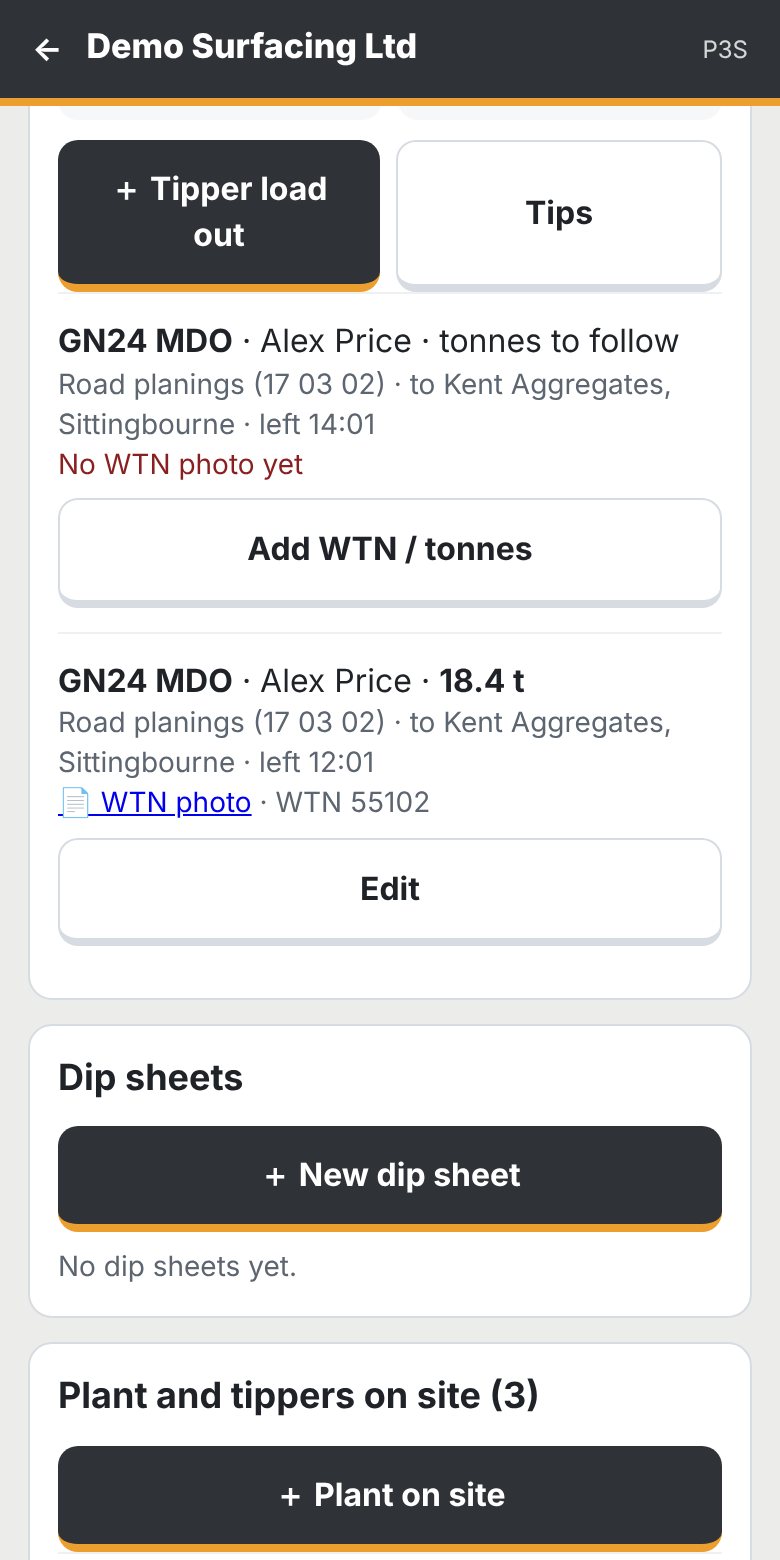
- Log each tipper load outTipper, driver, waste type and code, which tip and the tonnes from the weighbridge.
- Photograph the signed WTNThe waste transfer note is kept with the load. Any load without one is flagged in red.
- Saved tipsAddress, opening hours, what they take and a map pin, with directions and a call button for the driver.
- Plant and tippers on sitePlaner, paver, rollers and tippers logged on and off site.
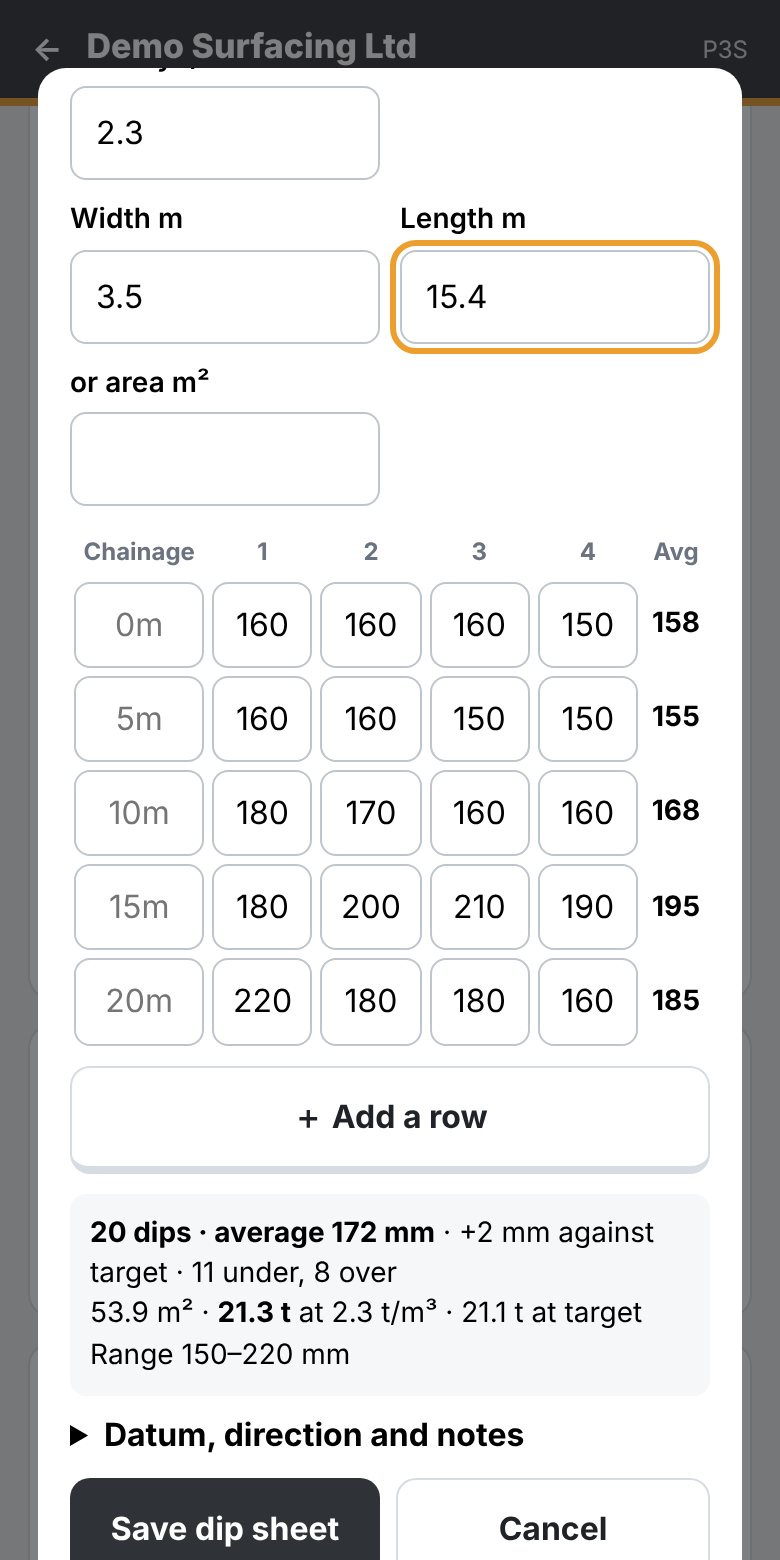
- Dip sheetsTarget dip, dips across and a row at each chainage. P3S works out the averages, what's under or over target, and the tonnes.
Timesheets and stock
Hours in, payroll ready.
Each person fills in their own week on their phone. The office downloads it for payroll.
- Fill in the dayDate, worked or not, day or night, the planned job (or non-job work) and the times.
- Declare the weekThe office sees every person's week in Team timesheets.
- Download for payrollOne spreadsheet for the whole team.
- Stock and restock emailsSet a minimum for each stock item. When it drops below, the people you choose get an email.